RTM + Gmail = task management goodness

It’s no secret that we’re big Google fans here at Remember The Milk: we provide task management in Google Calendar, have an iGoogle Gadget, send reminders via Google Talk, show task locations with Google Maps, and provide offline access with Google Gears.
However, integration with one Google product has eluded us. It happens to be the product that inspired us when we started building RTM back in 2004 – that’s right, the one and only Gmail. We’ve always thought it would be incredibly cool if you could manage your tasks alongside your mail – and have your tasks know what’s on your calendar and who your contacts are too.
Gmail has never had an official API that would support this, but the recent updates to Gmail also saw the launch of the experimental Gmail/Greasemonkey API. Now that it’s semi-officially supported by Gmail, we’ve decided to release something that we’ve been playing around with for a while at RTM HQ, so that everyone can enjoy it :)
Introducing Remember The Milk for Gmail
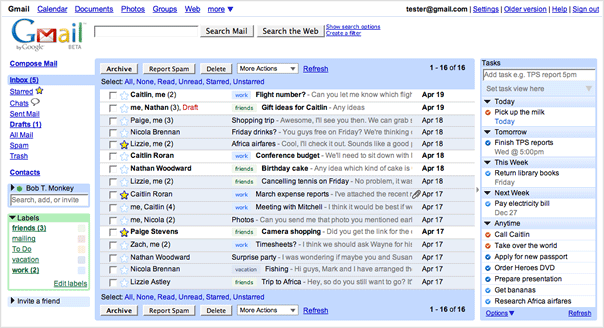
Yup, that’s RTM in there! Remember The Milk for Gmail is a Firefox extension that lets you do all kinds of crazy cool things with your tasks (and interacts with your mail, contacts, and calendar too). Read on to learn more…
Manage your tasks
Once installed, you’ll see a tasks pane on the right in Gmail. You can customise which tasks are shown (with options to filter based on list, Smart List, tag, location, or advanced search criteria) and decide how to sort and group your tasks. Adding new tasks is easy. Just enter your task in the box provided – feel free to include when it’s due and any tags, too.
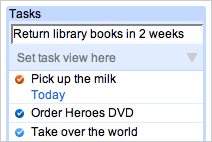
You can add tasks like:
Pick up the milkCall Lizzie at 9am tomorrowReturn library books in 2 weeksFinish report, tag with workTo complete, postpone, delete, or view and edit a task’s details, just move your mouse over a task in the list.
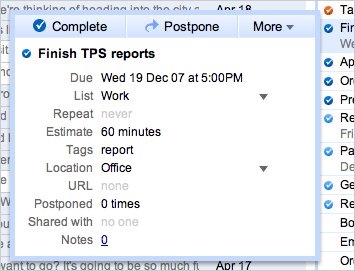
If you change your mind, don’t worry – you can undo too.

Connect tasks with your mail
Say you have an email that requires a follow up, or contains a task that you need to remember – you might star this message, or maybe label it with “To Do”. RTM can automatically create a task when you star a message, or label a message with a specific label.
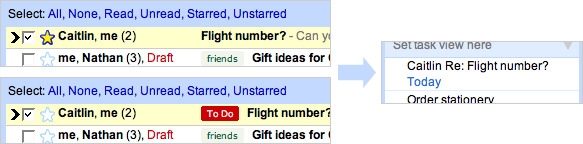
You can change your preferences for these features by going to the Settings screen in Gmail, then clicking on Tasks.

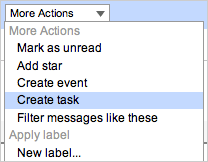
You can also create a task from an email by selecting Create task from the More Actions dropdown.
When you’re ready to reply or follow up on the email, mouse over the task details. You’ll see an icon linking to the original email – click on it to reply. Once you’ve sent the email, the task will be automatically completed.
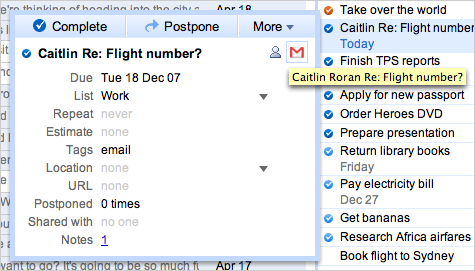
Now you’ll never forget to reply to Aunt Sally, or follow up with your boss about that report she emailed to you.
Connect tasks with Google Calendar events

No need to check your calendar when setting due dates! Remember The Milk talks to Google Calendar when it detects that you’re adding a task related to an event in your calendar, and automagically figures out when your task is due.
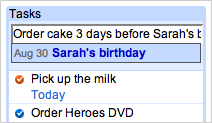
You can add tasks like:
Organize flowers 2 days before Mother’s DayCall Jimmy on ThanksgivingWrite up minutes after team meetingSend thank you notes 1 month after my weddingConnect tasks with your contacts
Need to remember to call or email someone? When you add tasks that start with special action keywords, followed by a person’s name, RTM will automagically link up the task with the Gmail contact who it’s associated with.
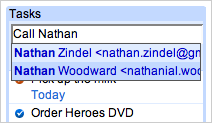
You can add tasks like:
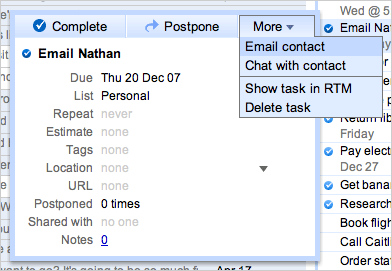
Call Nathan about report tomorrowEmail Caitlin todayAsk Alice about trip to SpainFollow up with Jason in 2 monthsYou’ll see that your contact is linked with the task in the task details. If your task is to email your contact, just click on Email contact here to compose an email to them. Once you’ve sent the email, the task will be automatically completed.
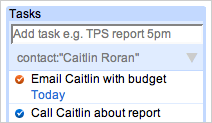
Now, what if you wanted to see all tasks linked with a contact? No problem! On the Contacts screen in Gmail, just select the contact(s) you’d like to see. All the tasks linked with the contact will be displayed on the right.
See it all in action
So you want to see how it works? Good thing that Bob T. Monkey made this video demo for us:
Ready to get it now?
Sweet! You’ll need to have both Firefox and the new version of Gmail. Google is still rolling out the new version of Gmail – you have the new version if you see an “Older version” link at the top right in Gmail.