
Find the important stuff quickly with Favorites

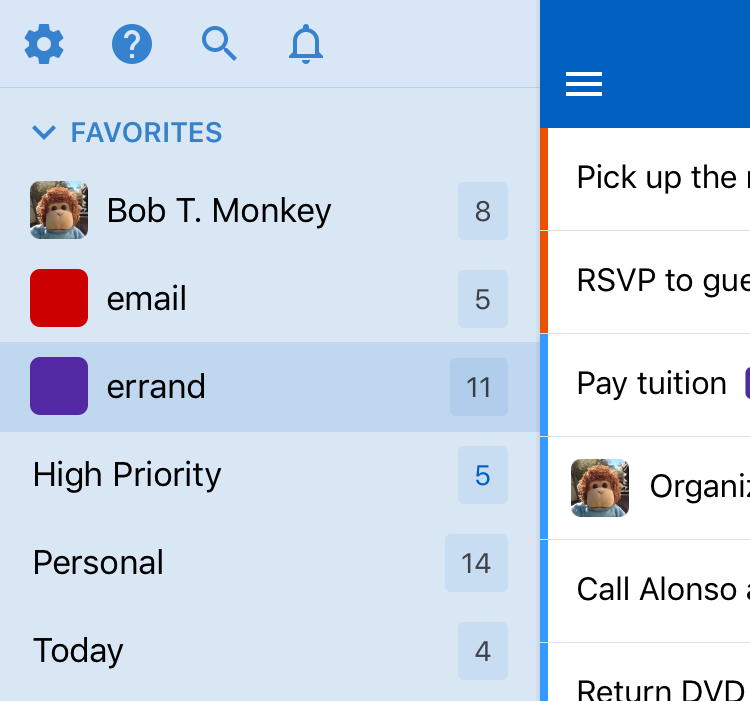
Do you have some lists or Smart Lists that feel a tad more important than others? Maybe there are tags or locations that you use pretty often? Or contacts that you’re frequently giving tasks to? (Hi, Bob!)
Our new Favorites feature is for you! Choose your favorite lists, Smart Lists, tags, locations, and contacts, and have them all displayed in their very own Favorites group. Now there’s no more hunting through the navigation for those super important lists or contacts!
Favoriting in the web and desktop apps
- Hover over the list (or Smart List, tag, location, contact, etc) you wish to favorite in the left navigation column.
- Click on the dropdown arrow to the right of the name to display list options.
- Click Add to Favorites.
Favoriting in the Android app
Note: Make sure you update to the latest app version first! In this example, we’re favoriting a list, but you can favorite Smart Lists, tags, locations, and contacts, too.
- Navigate to the Lists section in the left menu.
- Tap the list you wish to favorite to bring up its task list.
- Tap the Title Bar at the top of the screen and then tap Edit list.
- Tap the Favorites field and select Show in Favorites.
- Tap Save.
Favoriting in the iOS app
Note: Make sure you update to the latest app version first! In this example, we’re favoriting a list, but you can favorite Smart Lists, tags, locations, and contacts, too.
- Navigate to the Lists section in the left menu.
- Tap the list you wish to favorite to bring up its task list.
- Tap the Title Bar at the top of the screen and then tap Edit list.
- Tap Add to Favorites.
- Tap Save.
We hope you enjoy favoriting all the important things. :)