
11 super useful tips to get more out of Remember The Milk


There’s a lot inside Remember The Milk. Bob’s been coding for more than a decade without so much of a hint of a complaint. (We think the supply of bananas has helped!)
But with all those years of work on new features and tools, even Bob has almost forgotten just how many ways there are to add tasks fast, create and sort lists, get reminded anywhere he goes, and never forget a thing.
We’ve tapped into Bob’s memory to deliver to you the app’s special abilities that, until now, might have been overlooked.
Let’s go through our favorite monkey’s first brilliantly useful tips for getting the most out of Remember The Milk for your busy life.
1. Your words can be powerful - add tasks by voice!
Had a great idea in the car but no hands to jot it down? Need a quick way to add a reminder to buy more olive oil while cooking, but your hands are a mess?
Voice activation helps you add tasks no matter what you’re doing or how busy you are while on the go.
Apple’s Siri on iOS and all Alexa-enabled devices (US only) can help you take down new tasks and reminders.
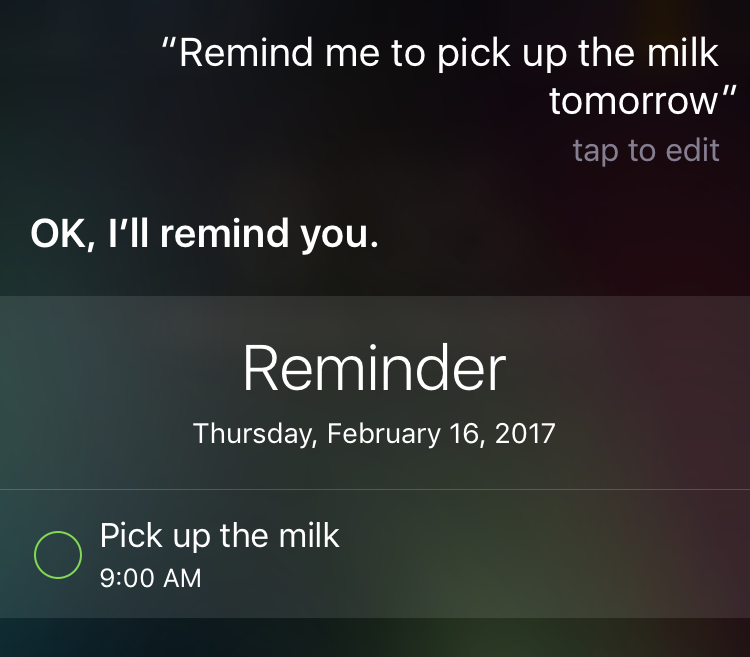
Android isn’t left out either, with a special homescreen widget for your homescreen to grab your tasks as you go via the microphone. Voice power!
2. Smart Lists give you eagle vision
Bob’s been talking about Smart Lists, well, forever.
It’s a handy way to help you find you all the tasks that have been tagged with ‘#Work’ and ‘#Urgent’, for example.
That’s easy, sure.
But what about super advanced Smart Lists that open up new ways to find, track, and get things done on time - and only show you tasks you’re interested in right now? 🐵
Here’s some ideas:
Note takers rejoice - your notes on tasks are searchable too
Do you keep notes with your tasks to add more detail? You can deep search or even build a Smart List that shows you tasks that have important keywords in the notes in the task, allowing your whole diary of thoughts and notes to become completely searchable.
Try noteContains:”top secret”
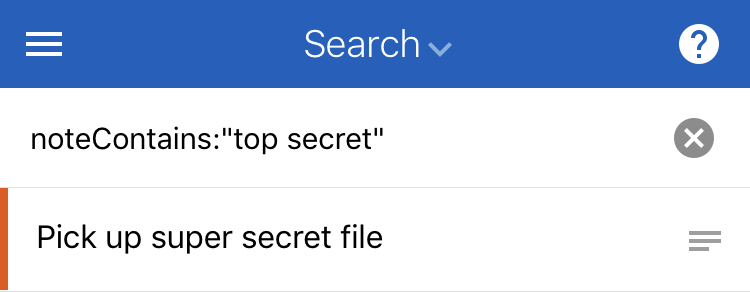
Letting tasks slip? No more!
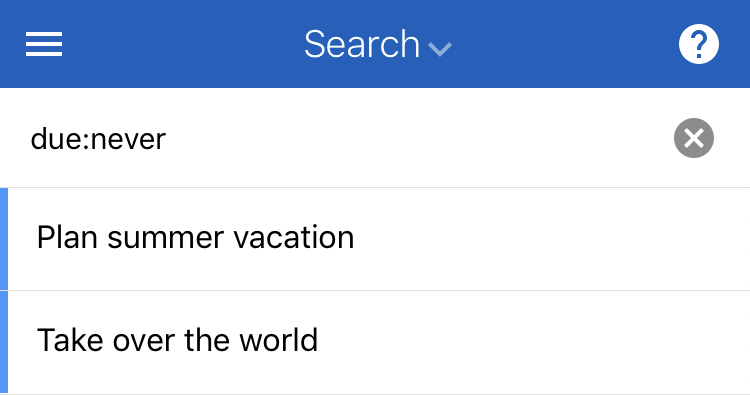
A due:never Smart List query shows you anything you haven’t categorized, which is a fast way to clean up your lingering tasks and get them into line.
Bucket List
The same query (due:never) is also a way of sorting through your tasks that aren’t necessarily ‘must-dos’ but more like a Sticky Note that says ‘Visit the Greek Islands one day’. Don’t be afraid to add more bucket list items that can get caught by the same search. Never stop dreaming!
Godmode-level tip
Creating a task inside a Smart List will mean that task inherits the Smart List criteria by default. How can this work for you? Well, how about a Smart List that shows all your high priority tasks that are due today and located at the office.
That’s a search that goes priority:1 AND location:office
Any tasks added to this Smart List will automatically inherit all these properties! It’s the fastest way to add a bunch of tasks with the identical features such as a big project.
3. Smart Add turns you into a wizard
There’s no secret that less clicks = less hassle.
Smart Add can make things happen so fast, you might believe you’re magic.
Simply type in your task and then add operators to define all the properties of the task.
# adds a tag or a list, * adds a repeat and many more - plus you can finish your task with a note via the // operator.
And the wizardry doesn’t stop there! Smart Add understands what you mean if you say repeat every 7 days, every week, or every third Monday in a month. (Some say it understands you better than you do!)
Smart Add Shortcuts
! Priority
~ Start Date
^ Due Date
* Repeat
= Estimate
# List/Tags
@ Location
+ Give to
// Note
4. Keyboard shortcuts gives your fingertips turbo power
Keyboard shortcuts are one of those things you didn’t realize could be so good.
Here’s a taste of turbo power at your fingertips:
- Leap between your lists at the speed of light in an instant by hitting g then i for Inbox, g then a for All Tasks, g then t for Today, and so much more.
- Hit a key once for actions - press c to complete, p to postpone, d to change due date, e to change your time estimate, all on the fly.
- Select all your tasks at once (* then a) or (* then v) to select overdue tasks.
- Deselect all / select none by hitting the Esc key.
- Want to see all your shortcuts? ? is right! Press ? to open shortcuts help and see all the keyboard shortcuts.
Bonus! Many of these keyboard shortcuts work the same as in Gmail, which means you’ll be tapping your way through without needing to touch a mouse or trackpad on multiple apps.
5. Locations: Where you are powers what you need to do, in more ways than one
Having tasks associated with locations is a super powerful way of both remembering things, and using where you are to filter out things you don’t need right there.
Remember The Milk offers the ability to set tasks for any location you can find on a map so that where you are helps define what you should get done.
For example, you might want an office or home location, or even a location called ‘New York’ that could help you remember tasks you need to do on your next trip to the Big Apple.
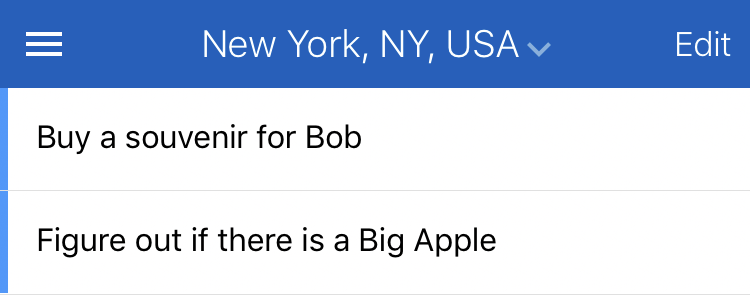
From our web app on a desktop, the apps on iOS and Android also know where you’re located when you’re on the move as well, which gives you the option of the ‘Nearby’ feature to see nearby tasks as well.
You can also use the locatedWithin search across all platforms to create Smart Lists that show nearby tasks.
Bonus tip: Use tags for contexts
What about tasks that aren’t quite so tied to a physical location? This is where the magic of tagging comes in!
For example, if you tag tasks with #internet, that could be for tasks that require an internet connection.
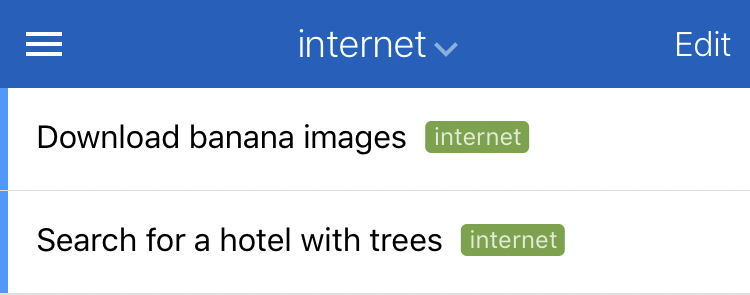
The same goes for #plane for those tasks that you want to assign to an upcoming flight. (Lucky you!)
And if you tag every task that you need to make as a phone call with #call, you can then tackle all the #call tasks in one power session.
6. Sorting, grouping, ordering: your filing system now comes fully loaded
Lists are great and all, but what about when you want to see your tasks in a list, grouped and sorted just the way you want?
You can sort by priority and due dates. Standard but good.
But what about grouping by tag and sorting by start date?
There’s options to sort your tasks by just about any criteria.
One you might not have thought of is ‘task source’ - sort by the app where you added the tasks in case you’re tracking what tasks you added on the fly.
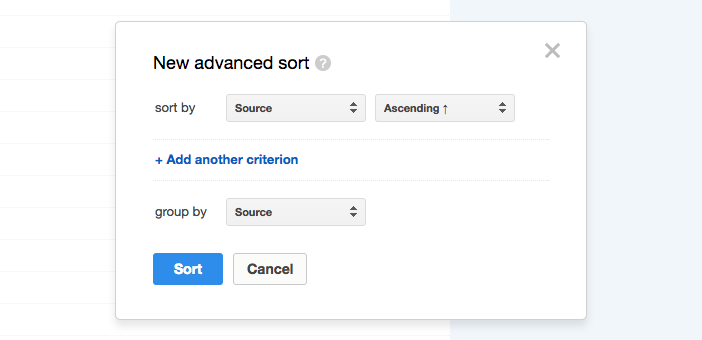
For example, you can sort your tasks by where you added them, either via the Android app, or the web app. Or any of our apps!
7. Advanced search makes you faster than a CSI
Can’t find an extremely important task given to you by a colleague from three years ago that is surely lost forever?
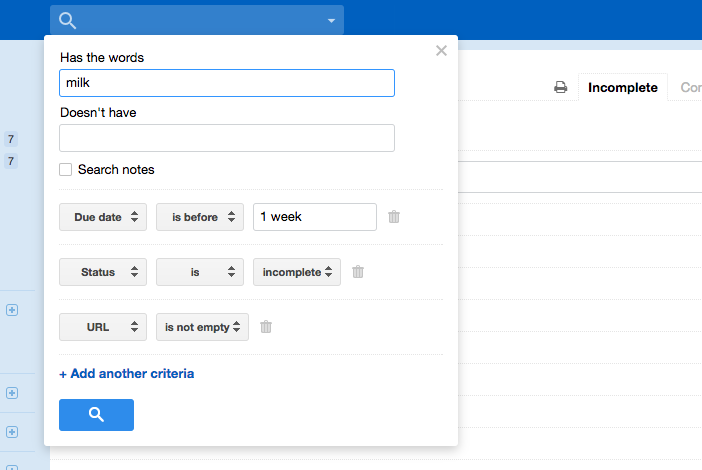
Advanced search can help - click the arrow button in the search box and start drilling down into any sort of deep detail you can imagine.
Add in multiple criteria to search for tasks given by a person, search for a due date before a certain date, and the status is complete. Then continue to refine by words in the task, if it has a URL or not, or even words in the notes on the task.
Yeaaahhhhh!
(•_•)
( •_•)>⌐■-■
(⌐■_■)
8. Managing projects (and holidays!) like a boss: Tasks + subtasks + subtask subtasks?
Tasks alone are powerful, but with subtasks, now there’s no limit to how much detail you can add to a task. With subtasks of subtasks possible, just one task can now be a whole complex project full of time estimates, due dates, start dates, and detailed notes.
Here’s just one example - create a task called ‘Packing for holidays’ without a due date.
Add a subtask for summer locations, add a subtask for winter locations, and for any other locations where you know you’ll need something specific.
Within the summer subtask, add further subtasks for everything you’ll need for a summer holiday: swimmers, flip-flops, sunscreen, insect repellant, beach body.
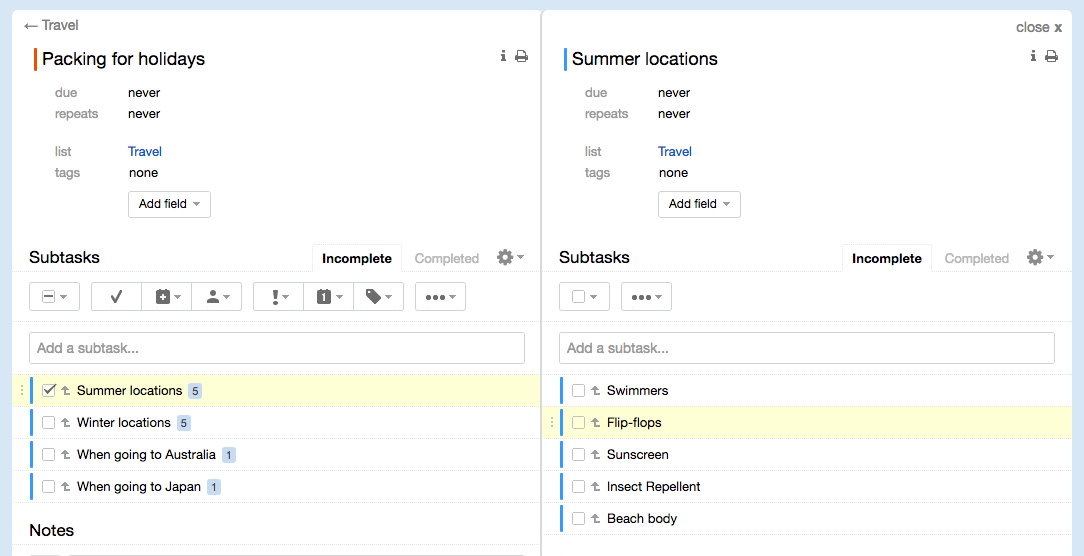
Within the winter subtask, do the same and build out a list for a winter holiday:
Boots, coat, beanie, gloves, thermal underwear.
After each trip away, update the list with extra thing you found useful so that you’re ready for the next trip.
Utilize those tasks whenever you need!
9. Use an RSS feed of your tasks to achieve …anything!
We admit, sometimes there are so many features, you can’t even know just what you’re suppose to do with them all. So why does Remember The Milk offer RSS feeds?
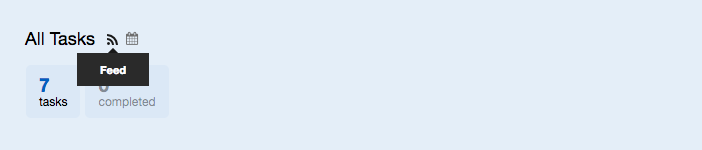
An RSS feed of your tasks and completions can be used to track tasks in a huge variety of complementary tool and apps.
Want to push your tasks due that day into an RSS reader for your morning reading on the train? Now you can.
Want to publish a list of tasks from Remember The Milk for a project into a Wiki? RSS might be your answer.
One clever Remember The Milk user even uses his RSS feeds for certain task lists so that he constantly has a list of phone calls to make available to him. Automagical!
10. Inbox Zen: BCC yourself to remind you to follow up on emails
You might not have known that you can email to your own personal and unique Remember The Milk email address to ingest tasks.
Want to remind yourself to follow up on email later, and hate not getting to Inbox Zero?
Bcc yourself on an email to remind you to follow it up later. It’ll change your world.
I just realized that I could BCC Remember the Milk on my emails. Everything is different now.
— Gunnar Hellekson (@ghelleks) January 10, 2013
11. Review what you’ve achieved - productivity hero status awaits!
Be encouraged by how productive you are by looking back to see just how many tasks you crushed.
You can run a search query to find out how many tasks you’ve completed in the past month:
completedWithin:“1 month of Today”
Or tasks completed in the past year:
completedWithin:“1 year of Today”
Or even all-time:
status:completed
Plus! At the end of each year, Bob will let you know where you can review and even tweet your #rtmstats, too. Nothing like a bit of competition to keep you on your toes!
I completed 3,281 tasks with @rememberthemilk in 2016 #rtmstats
— Bob T. Monkey (@bobtmonkey) December 27, 2016